
You turned on QuickBooks sales tax because an invoice needed to go out, accepted the suggested settings, and assumed the software would handle the rest. That assumption is how a Jacksonville business can end up collecting the wrong amount, filing under the wrong agency, or discovering that a state registration was required long before the first return was due.
Thank you for reading this post, don't forget to subscribe!QuickBooks setup sales tax is a compliance decision, not a software toggle. The software can automate calculations based on customer location, product category, and current rates, but it can't decide where your business has nexus, whether you should register, or whether an exemption certificate is valid. Those decisions belong to you and your accounting team.
For small companies, professional bookkeeping, tax guidance, and fractional CFO support earn their keep here. Most owners know how to sell, invoice, and serve customers. They don't always know every registration, filing frequency, tax category, local agency, and monitoring obligation that follows. A clean QuickBooks file starts with those decisions.
When QuickBooks Sales Tax Setup Goes Wrong
A Jacksonville online seller once enabled automated sales tax, accepted the default settings, and began shipping orders to California. The owner believed QuickBooks had covered the compliance issue because the invoices displayed tax. The business hadn't examined whether its activity created economic nexus, hadn't confirmed the required registration, and hadn't checked whether the products were taxable under California rules.
Six months later, a state notice demanded back taxes and penalties. The owner had treated the QuickBooks sales tax screen as the compliance process. It wasn't. QuickBooks calculated the rate it believed applied to each transaction. It didn't determine whether the business had an obligation to register or file.
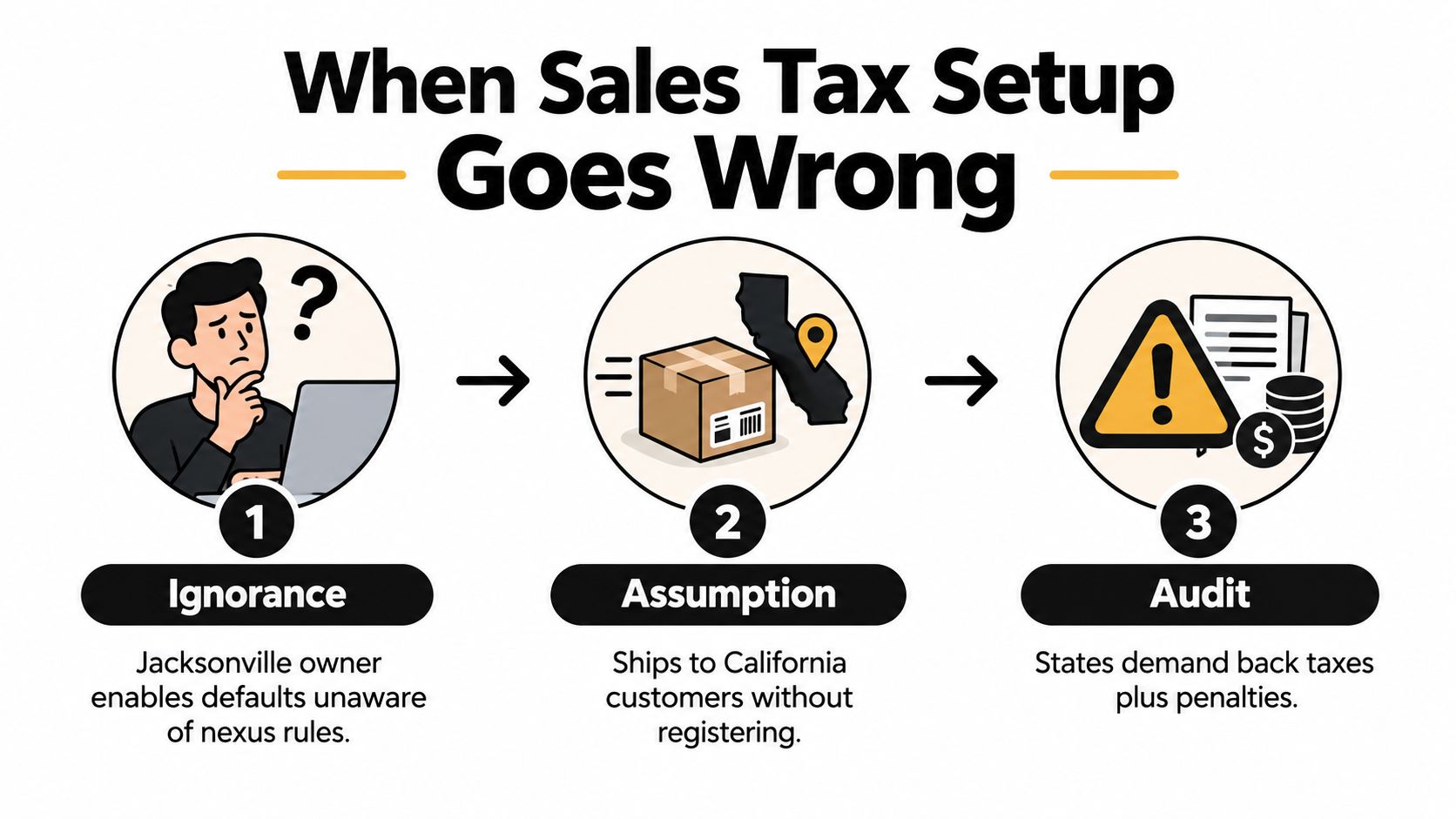
The practical rule: QuickBooks can automate a decision only after someone makes the right compliance decisions first.
Three failures create most sales tax problems:
- Wrong nexus assumptions: The owner registers only in Florida despite remote employees, inventory, physical operations, or sales activity in another state.
- Mismatched tax categories: Products, services, freight, discounts, or exempt transactions receive the wrong category, so the invoice calculation is wrong even when the rate itself is current.
- Skipped validation: Nobody compares the Sales Tax Liability report with registrations, filed returns, customer locations, and transaction details before submitting a return.
QuickBooks has moved from the manual Desktop model, where users created a Sales Tax Item for each city, county, or district and entered a specific percentage, toward location-aware automated calculation in QuickBooks Online. The current Online workflow requires the business address, collection jurisdictions, product and service categories, and agency mappings to line up before the calculation can be trusted. Intuit's automated sales tax setup guidance shows why this is a data-driven process, not an on-and-off switch.
If your file already contains old rates, duplicated agencies, or unexplained liability balances, don't keep adding transactions to the problem. Start with a QuickBooks cleanup service before you configure new rates.
Preparing QuickBooks Before You Turn On Sales Tax
Start outside the Sales Tax menu. A tax engine can't repair a disorganized ledger, an incorrect address, or a registration list that doesn't match the company's actual obligations.
Clean the accounting foundation
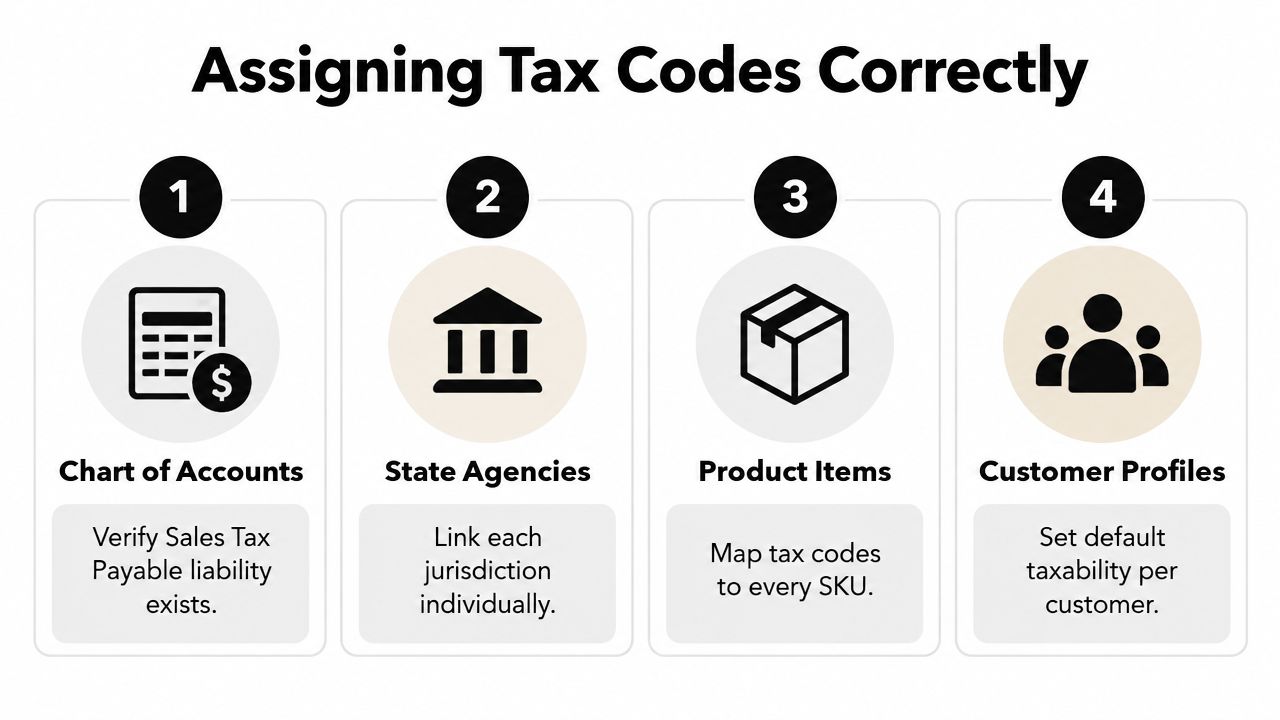
Review the chart of accounts and confirm that QuickBooks has a dedicated Sales Tax Payable liability account. It should appear with the other current liabilities and shouldn't be mixed with payroll liabilities, customer deposits, or general accrued expenses. If prior payments were posted directly to expense or income accounts, correct those entries before enabling automation.
Your legal address, physical operating address, and shipping-from locations also need review. QuickBooks uses transaction location information when it calculates tax, and shipping details can affect treatment. A company that invoices from Jacksonville but fulfills orders from another location shouldn't assume one address tells the whole story.
Your QuickBooks chart of accounts setup should support clear reconciliation, tax reporting, and management reporting at the same time.
Decide the reporting basis before entering agencies
QuickBooks setup ties sales tax to the company's reporting method. Under accrual accounting, tax accrues with the invoice. Under cash accounting, it follows payment receipt. Don't choose a method because the screen suggests it. Match the selection to the company's accounting records and the requirements attached to each registration.
Intuit's Desktop guidance identifies monthly, quarterly, or annual filing frequencies for sales tax in QuickBooks Desktop for Mac, illustrating that compliance follows recurring reporting cycles rather than one setup event. The same guidance covers the accrual and cash choices in the QuickBooks Desktop sales tax setup process.
Before you open QuickBooks Sales Tax, prepare a working schedule with:
- Registered state and local agencies
- Registration or business identification numbers
- Certificate effective dates
- Filing frequency for each agency
- Reporting method
- Taxable and exempt product categories
- Customer exemption documentation
That schedule becomes the control document. The settings should match it, not the other way around.
Configuring Sales Tax in QuickBooks Online Step by Step
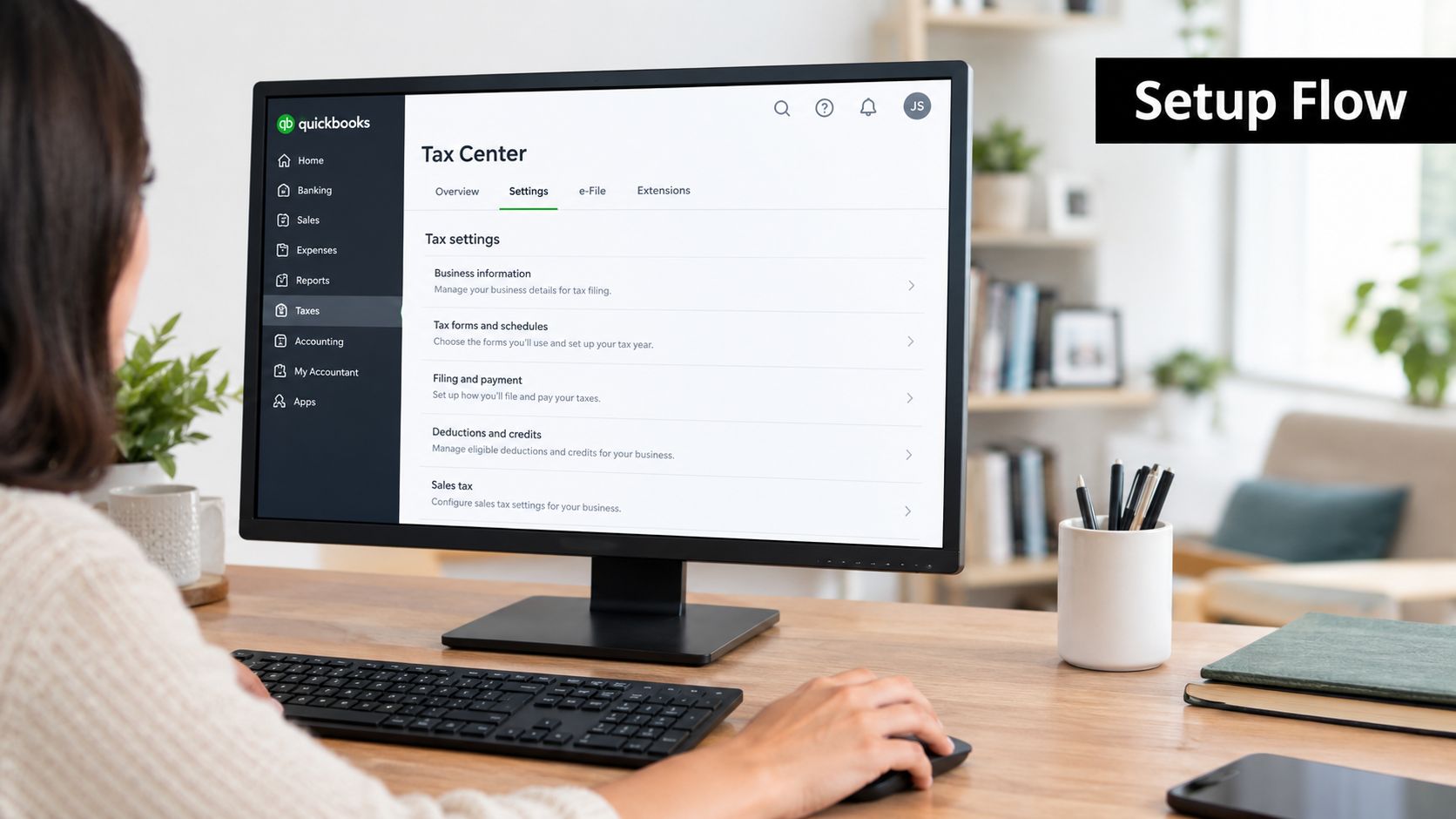
QuickBooks Online's current setup flow begins with the Sales Tax area. Depending on the version and interface, access may appear through All apps, Sales Tax, Overview, or through the tax settings menu. Confirm the current navigation in your account, then enable automated sales tax only after the preparation work is complete.
Begin by confirming the business address. Then specify where the business collects tax and add every required agency. For each agency, enter the business ID, filing frequency, current tax period start date, and reporting method. Save each configuration separately. Businesses operating across jurisdictions must repeat the agency setup for each applicable city, county, or state.
Map rates to the right agencies
Review the suggested agency list rather than accepting every suggestion blindly. A combined rate may contain state, county, city, and district components, and the components may need separate tracking for filing. Match existing rates to the correct official agency one at a time or in bulk, then verify the result against the agency's registration information and rate notice.
QuickBooks Online can set a default rate and mark new customers or products as taxable, but defaults are dangerous when the business sells mixed products or serves exempt customers. Intuit's QuickBooks Online sales tax setup documentation identifies the tax name, paying agency, and rate as core setup fields.
Configure filing frequency per agency. Don't assume every registration uses the same schedule. Review the start date carefully. It should match the applicable tax period and registration documentation, not just the day you happened to open the QuickBooks menu.
For a clear overview of how sales and purchases move through an accounting cycle, the guía de transacciones del ciclo de vendedor can help you connect transaction flow with tax reporting.
After setup, review the Sales Tax Liability report. Beginning balances should make sense, agencies should appear once, and the liability should reconcile to the transaction history. If the company needs to collect tax retroactively, don't force old invoices through a new configuration without review. Manual journal entries against Sales Tax Payable may be necessary, and that work should be supervised by an accountant.
Watch this walkthrough after reviewing the settings, not instead of reviewing them.
Assigning Tax Codes to Items and Customers
Correct agencies won't save an invoice if the item mapping is wrong. QuickBooks uses product and service categories to determine how an item should be treated, so every SKU, service, labor code, freight charge, discount, and other billable component deserves a deliberate tax decision.
Open each product or service record and locate the sales tax category. Choose Taxable, Non-taxable, or the specific category that matches the applicable rules. Don't label every service non-taxable because a competitor does. Taxability can differ by state, customer type, and service classification.
Freight and shipping charges deserve their own review. Marketplace facilitator sales also need separate treatment because the platform may collect tax for some transactions while your business remains responsible for other sales or reporting obligations. Keep the evidence for those decisions in the customer or transaction records.
Build the customer side correctly
A customer record should contain the default tax code and accurate address information. For exempt customers, retain the exemption certificate and record the exemption details. Resale certificates, government entities, nonprofits, and other exempt buyers shouldn't be handled through memory or a note in someone's email inbox.
An out-of-state shipping address can change the transaction's tax treatment and may reveal a broader nexus issue. Confirm the address before the invoice is finalized, particularly for contractors, healthcare organizations, nonprofits, and businesses with recurring billing.
Use this review exercise before the next filing period:
- Run a sales-by-customer report.
- Select ten invoices from different customers, locations, and item types.
- Compare each invoice with the expected jurisdiction and tax category.
- Correct the customer, item, or agency mapping.
- Re-run the report and document unresolved exceptions.
The purpose isn't to prove that QuickBooks is always right. The purpose is to catch where your data tells QuickBooks the wrong story.
Understanding Nexus and Multi-State Sales Tax
Nexus answers the first question, which state or local agency can require registration and collection? QuickBooks answers a later question, what tax should appear on this transaction after the relevant setup exists?
Physical nexus is the easier concept to recognize. Offices, employees, inventory, warehouses, and fulfillment arrangements can connect a business to a state. Remote employees and inventory stored by a fulfillment provider deserve specific attention because the business may have a presence even when its owner has never visited the jurisdiction.
Economic nexus is more subtle. A business can create an obligation through sales activity even without a traditional physical location. The thresholds and transaction tests vary by state, and marketplace facilitator rules can move collection duties to a platform for some transactions without eliminating every obligation for the seller.
Review state law before adding an agency
Don't build a national table from a generic blog post and assume it remains accurate. State rules change. Illinois removed its 200-transaction economic nexus threshold effective January 1, 2026, leaving a $100,000 gross-receipts threshold, as described in QuickBooks' sales tax guidance. That single change shows why a registration schedule needs ongoing review.
The practical checklist is straightforward:
- Physical presence: Review offices, employees, inventory, contractors, and fulfillment locations.
- Economic activity: Compare gross receipts and transaction activity with each state's current rules.
- Marketplace sales: Separate platform-collected transactions from sales where your business remains responsible.
- Product scope: Confirm whether the state taxes the goods or services you sell.
- Registration status: Check whether collection begins at registration, at a specified effective date, or under another state rule.
The requested comparison of specific thresholds and filing cadences can't be completed responsibly from the verified information available here. State thresholds, transaction tests, filing assignments, and local administration must be confirmed directly with each revenue department or a tax professional before you put figures into QuickBooks.
Registration comes before configuration. Adding an agency in QuickBooks doesn't create a registration, and omitting an agency doesn't remove an obligation.
For a Jacksonville business expanding beyond Florida, the right order is to identify nexus, confirm registration, document the effective date, and then configure QuickBooks. A company that reverses that order may calculate clean-looking invoices while building an unreported liability.
Common Setup Mistakes and How to Validate Your Work
The most expensive QuickBooks sales tax errors usually look reasonable on an individual invoice. A taxable item gets marked non-taxable. A return shipment uses an old customer address. Freight is treated differently from the underlying product. A marketplace transaction is recorded as if the business collected the tax directly. Each decision may seem minor until the filing report combines them.
Look for the errors that survive setup
Review these failure points before approving a return:
- Overuse of non-taxable codes: Owners often classify items by habit instead of by jurisdiction and product rules.
- Address changes: A customer shipping to a new state can expose a new collection question.
- Shipping treatment: Freight and delivery charges may require a separate taxability decision.
- Marketplace records: Platform-collected sales need reconciliation with the platform's records and your own reporting.
- Duplicate agencies: Multiple tax agencies attached to one line can overcharge the customer or distort liability.
The Sales Tax Liability report is a starting point, not an approval stamp. Reconcile the balance to deposits and recorded transactions, compare the current period with the prior period, export taxable sales by jurisdiction, and compare the results with the raw data used for the state return. Then calculate a sample invoice independently and verify that the cents match.
Add sales tax to the monthly close
A useful close routine should answer four questions:
- Does the liability report agree with the ledger?
- Does each agency match an active registration?
- Do taxable sales by jurisdiction agree with the filing workpapers?
- Do sample invoices use the right customer, location, item, and rate?
When the answer is no, stop filing and investigate. Don't post a plug to make the report balance. That hides the error and makes the next period harder to diagnose.
If your file has unexplained balances or old manual rates, use a QuickBooks cleanup checklist before building another reporting period on top of unreliable data.
Why Sales Tax Setup Is Not a One-Time Project
Sales tax rules change, business activity changes, and QuickBooks data changes. A new product line may have a different tax category. A new customer location may create a registration question. A legislative update may alter a threshold or the taxable treatment of a service.
State law changes make periodic monitoring mandatory. Illinois' removal of its 200-transaction test on January 1, 2026, while retaining a $100,000 gross-receipts threshold, demonstrates that a sales schedule can become outdated even when the business model stays the same. Review Intuit's current sales tax resource when evaluating changes, then confirm the rule with the relevant state agency.
Put ownership around the process
Run the Sales Tax Liability report during the monthly close. Review new customer locations, item categories, exemptions, marketplace activity, and agency balances. At least quarterly, compare the report with filed returns and confirm that every new jurisdiction has been evaluated.
QuickBooks may surface rate changes or suggest agencies, but someone must open the dashboard, assess the notice, and decide whether the business needs a registration or filing change. A software prompt isn't a compliance review.
A fractional CFO gives the owner an accountable person for this loop. That role can coordinate bookkeeping, tax preparation, cash-flow planning, registrations, reporting deadlines, and management decisions without the overhead of hiring a full-time executive. Most small businesses don't know every requirement that applies to them, and waiting for a state notice is a poor substitute for guidance.
Bookkeeping and Accounting of Florida Inc. provides QuickBooks setup and maintenance, bookkeeping, tax preparation, audit support, and fractional CFO services for growing companies in Jacksonville and Northeast Florida. The firm works with businesses including healthcare practices, construction companies, retailers, and nonprofits, where tax categories, payroll, job costing, exemptions, and reporting often intersect.
Bookkeeping and Accounting of Florida Inc. can review your nexus exposure, registrations, QuickBooks sales tax mapping, customer exemptions, agency settings, and reconciliation process before the next filing deadline. Visit Bookkeeping and Accounting of Florida Inc. to schedule a consultation and get a practical plan for accurate books, compliant filings, and ongoing financial guidance.