
A Jacksonville owner buys QuickBooks Payroll, opens the setup wizard, and hits a wall before adding the first employee: What's the Florida reemployment tax rate? Has the business registered with the state? Which payroll start date should be selected if another provider handled earlier checks? QuickBooks can collect the answers, but it can't make missing registrations or incorrect records disappear.
Thank you for reading this post, don't forget to subscribe!That's the answer to how to set up QuickBooks Payroll: get the compliance decisions right before you rely on the software. A payroll system can calculate and file based on the information it receives. If that information is wrong, automation just helps repeat the mistake efficiently.
Why Payroll Setup Is Really a Compliance Decision
The setup screen looks straightforward. The owner enters company details, adds employees, connects a bank account, and picks a payday. But each field reflects a decision that may have been made outside QuickBooks, including where the business operates, which tax accounts it has, and how workers are classified.
Payroll errors aren't rare. Independent reporting cited in QuickBooks' direct-deposit guidance found errors in wage calculations (48%), late or missing payments (38%), incorrect hours (36%), and incorrect tax calculations (27%). Those figures make a practical point: payroll mistakes often start with processes and records, not the software itself. QuickBooks' direct-deposit guidance discusses these payroll error patterns.

The software can't resolve a missing compliance decision
A Jacksonville company may have an EIN but not yet have the state account details needed for payroll. An owner may know an employee's hourly rate but not whether the role is exempt or nonexempt. A business switching providers might choose a start date without considering prior wages and tax withholding already recorded elsewhere.
These gaps can lead to inaccurate calculations, filings that need correction, and time spent reconstructing payroll history. The cleanup often involves more than changing a setting. Someone has to compare payroll reports, tax liabilities, employee records, and bank activity, then determine which filings or records need attention.
Florida employers also need to keep up with applicable tax and employment-law changes. A payroll setup that was correct at launch doesn't automatically stay correct as registrations, rates, worker duties, or business locations change. QuickBooks can help administer payroll, but the employer still has to verify that the underlying information is current.
The practical rule: Make the compliance decisions first. Use QuickBooks to record and apply them, not to guess what they should be.
By the time you finish preparing payroll, you should know what information to gather, which setup choices require care, and when it's sensible to bring in an accounting professional. That's how you avoid turning a routine payroll run into a reconciliation project.
The Compliance Map You Need Before You Click Anything
A clean QuickBooks setup starts with business and tax records, not the payroll wizard. Work through the readiness checklist before entering employer information. For a Jacksonville business, state registration and correct worker treatment deserve as much attention as the federal EIN.
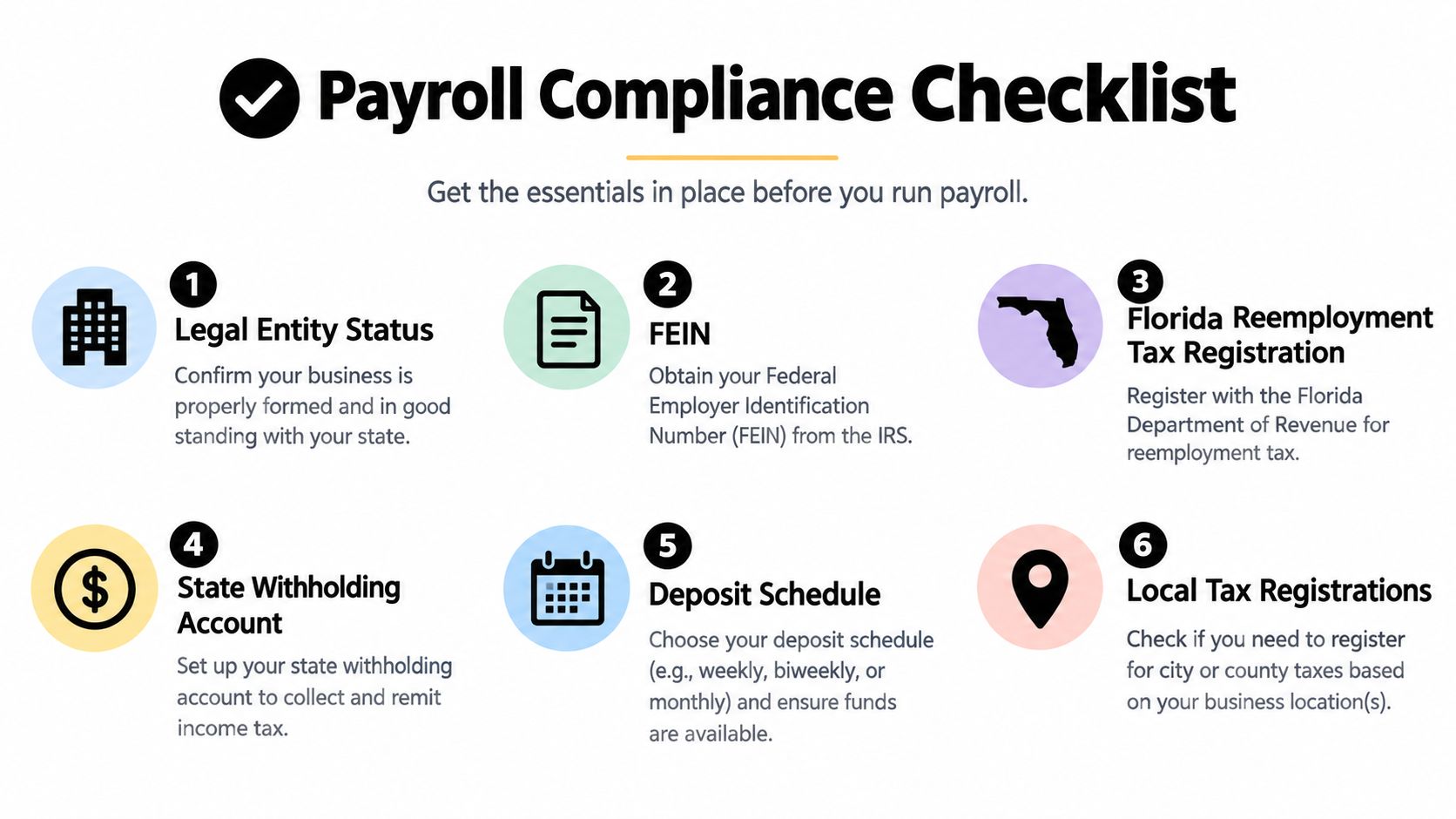
Confirm registrations and employer records
Start with the legal business name and entity information. QuickBooks needs the employer's identifying details to set up payroll and associate filings with the right business. Make sure your federal EIN and applicable state account numbers match official records.
Then confirm Florida reemployment tax registration and the business's assigned rate and deposit schedule. Florida employers should also check whether a state withholding account applies to their circumstances, and whether any additional local registrations or business records are relevant. Don't type a guessed rate into QuickBooks because the field is available.
Jacksonville employers commonly overlook the Florida RT-6 reemployment-tax setup. Confirm the registration, filing responsibilities, and assigned rate before you activate payroll.
Next, decide how each worker is classified. An employee and an independent contractor aren't interchangeable categories in payroll software. Review actual duties and the working relationship, then determine whether employee positions are exempt or nonexempt under applicable rules. For nonexempt staff, understand how overtime requirements apply to their work and pay practices. These aren't settings to choose based on convenience.
Finally, establish a payroll deposit schedule and gather historical payroll data if you've already paid employees during the current calendar year. Those records help QuickBooks calculate year-to-date wages and taxes and support accurate year-end reporting.
For an overview of the obligations that sit behind payroll processes, use this guide to payroll compliance. The difference between a setup that merely accepts your entries and one that supports clean filings is whether these outside registrations and decisions are correct first.
Choosing the Right QuickBooks Payroll Product
Choose a payroll product based on the work your business needs, not the longest feature list. QuickBooks Online Payroll offers Core, Premium, and Elite options, but tier details and availability can change. Verify current features, pricing, and eligibility with Intuit before purchasing. QuickBooks also offers payroll options for contractors, while a QuickBooks Online Plus subscription is an accounting product, not a payroll tier.
| Tier | Best For | Auto Tax Filing | Multi-State | Time Tracking | Support |
|---|---|---|---|---|---|
| Core | A small team with straightforward payroll | Check current plan details | Check current plan details | Check current plan details | Check current plan details |
| Premium | Businesses needing additional payroll tools | Check current plan details | Check current plan details | Check current plan details | Check current plan details |
| Elite | Businesses seeking higher-touch support and more advanced tools | Check current plan details | Check current plan details | Check current plan details | Check current plan details |
Match the tier to the operating reality
A two-person startup with one location and a simple pay structure may find Core sufficient if its current features cover the company's filing and payment needs. A growing Jacksonville employer that wants more support or additional payroll tools should compare Premium closely against its actual workflow. Don't pay for a feature you won't use, but don't buy a lower tier and then assume it includes every compliance safeguard.
A multi-state construction firm or a healthcare practice with both hourly and salaried employees has more to evaluate. Consider whether the product handles the required locations, employee groups, timekeeping workflow, and support needs. If your operation requires specialized compliance or hands-on payroll administration beyond what a software tier provides, compare outsourcing or another provider instead of forcing the wrong fit.
If you're comparing products across markets, LeaveWizard's guide to UK payroll software offers a separate view of payroll software selection for UK employers. It isn't a guide to U.S. tax requirements, so keep the jurisdictions distinct.
Walking Through the QuickBooks Setup Sequence
Once registrations and source records are ready, follow QuickBooks' guided setup in order. Sign in as the primary administrator, then open All apps → Payroll → Overview → Get started. QuickBooks asks whether employees have already been paid during the current calendar year and asks you to select the date it should begin processing payroll.

The start-date choice matters. If another provider has already paid staff this year, the new system needs accurate prior payroll information to calculate cumulative wages and withholding and support year-end forms. Selecting the wrong start date or skipping historical data can leave QuickBooks with an incomplete picture. Intuit's guided setup instructions explain the calendar-year payment question, payroll start date, and business address requirements.
Enter company information carefully
QuickBooks asks for the employer's legal details, federal EIN, applicable state account numbers, deposit schedules, and unemployment rate. Enter these from official records, not from memory. The employer also identifies a payroll contact, who should be someone prepared to receive and act on payroll questions and alerts.
Use a physical business address, not a post-office box. The work location helps determine applicable tax responsibilities, so an incorrect address can affect how payroll is configured. If employees work at additional locations, capture those locations in the appropriate employee records.
The enrollment process also requires principal-officer information for e-file and e-pay authorization. QuickBooks identifies the principal officer's legal name, SSN, birth date, and home address as required details. The SSN isn't an optional field to work around. It's part of the authorization process, so have the correct information ready and limit access to the people who need it.
A company may also need to authorize Intuit to act as a state third-party administrator and electronically sign relevant forms. Read those authorization requests, confirm the business and officer information, and complete the steps rather than assuming that entering tax details alone activates filing.
For help setting up the accounting side alongside payroll, see this guide to QuickBooks Online setup. That integration matters because payroll transactions need to land in the right accounting categories, not just appear in the payroll dashboard.
QuickBooks' setup screens are only part of the workflow. Use the video below as a product walkthrough, then verify each employer-specific field against your records before you submit anything.
Adding Employees and Creating Pay Schedules
Employee records need to be complete before payroll can calculate pay reliably. For each employee, gather the legal name, birth date, hire date, home address, email address, pay rate, and tax-withholding details from Form W-4. Confirm that the information matches the employee's records and current pay arrangement.
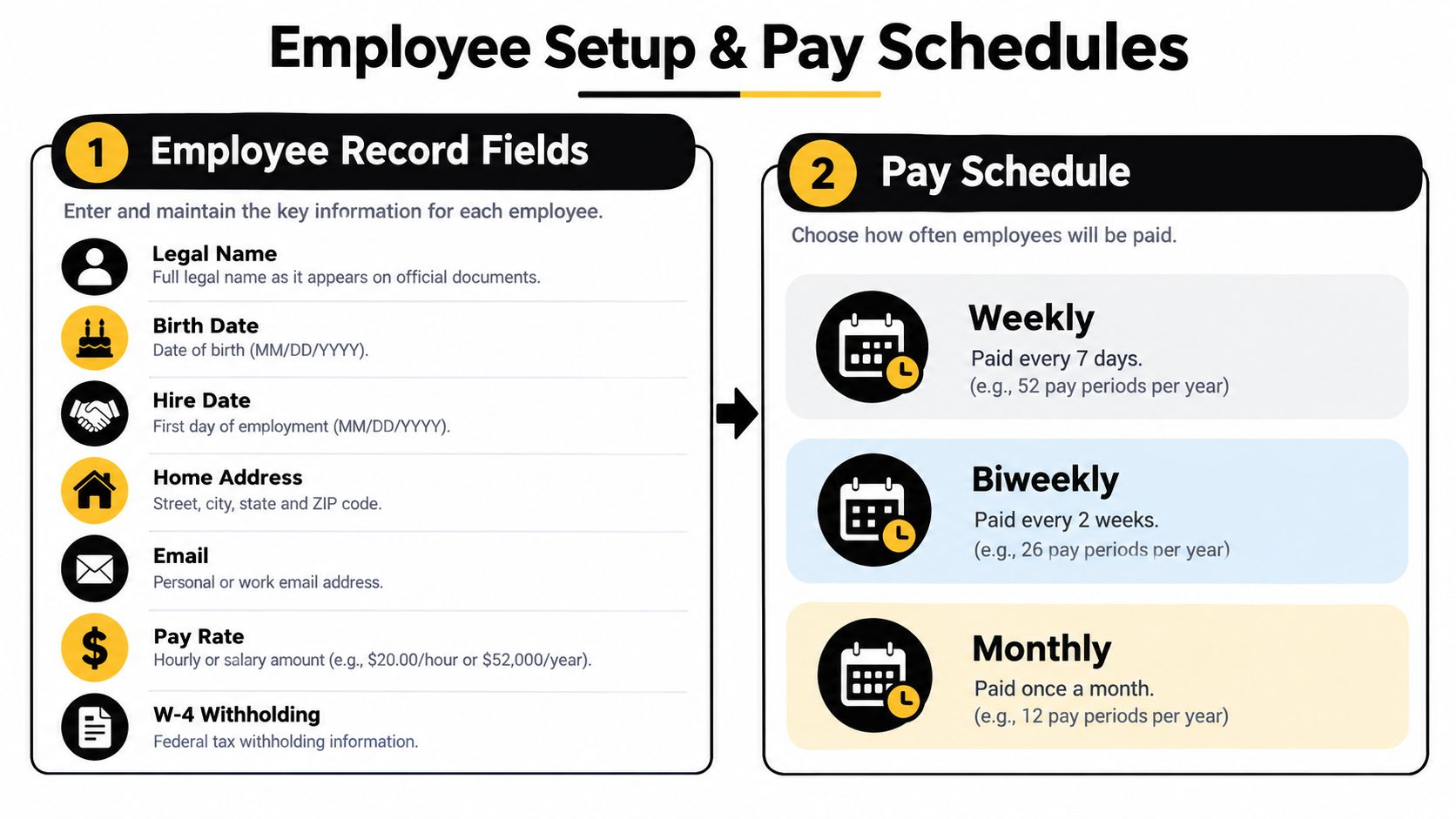
Choose a schedule that fits the work
A pay schedule connects each employee's pay period and payday to the company's accounting records. QuickBooks asks you to set the pay frequency, next payday, and end date of the next pay period. Available arrangements commonly include weekly, biweekly, semimonthly, or monthly schedules. Intuit's instructions for creating and managing payroll schedules describe those required dates and schedule options.
A business with hourly field crews may need a different schedule from its salaried office staff. A healthcare practice may also have mixed roles and different pay cycles. QuickBooks allows businesses to create separate schedules and assign employees to the appropriate one.
Choose by workflow, not habit: If hours and overtime need close review, pick a schedule that gives managers enough time to approve time records before payday. If cash flow is tight, model the timing of payroll funding before settling on a cycle.
After creating schedules, check the accounting preferences. Wages, employer taxes, benefits, and deductions should post to the intended chart-of-accounts categories. A payroll preview can look tidy while the accounting integration still sends costs to the wrong place. Fix the mapping before the first live run.
Direct Deposit, First Payroll, and Transition Risk
Direct deposit is convenient, but it depends on verified business, bank, and employee information. Before using it, complete bank verification, provide the required principal-officer information, and collect employee authorization. Don't treat the option to select direct deposit as proof that the payment method is ready.
Test before you go live
For the first payroll, review each employee's hours, pay rate, deductions, and withholding against source records. Compare gross wages, employee taxes, employer taxes, benefits, and expected bank funding. A parallel gross-to-net check lets you spot an error before it becomes a live payment or filing problem.
Submit early enough to review the payroll preview and resolve issues before payday. Confirm that the account will have the funds required for the run, and keep a backup payment method available for the first cycle in case a deposit is rejected or delayed. A paper check or manual payment can be a practical contingency, provided you record it correctly and avoid paying the employee twice.
Switching payroll providers midyear
The most common transition trap is assuming that a new system can start from the next pay date without prior records. If another provider processed payroll earlier in the year, import or enter accurate year-to-date wages, employee withholdings, employer taxes, and other required historical payroll data. Then compare QuickBooks' accumulated totals and liabilities with the prior provider's reports before the first submission.
Confirm who is responsible for filings covering the transition period. If both the old provider and QuickBooks submit the same filing, the result may be a duplicate. If neither does, the filing may be missed. Make the division of responsibility explicit, document it, and check that the first QuickBooks reporting period picks up where the prior system left off.
Diagnose the common setup failures
| Symptom | Likely Cause | Practical Fix |
|---|---|---|
| Year-to-date wages or taxes look wrong | The QuickBooks start date is incorrect, or prior payroll history is missing | Compare the setup date and imported totals with the prior system's payroll reports, then correct the records before filing. |
| Tax calculations don't match the work location | A post-office box was entered instead of the physical work address | Update the physical business address and review the locations assigned to employees. |
| State tax details fail validation | A state account number was entered incorrectly or omitted | Check the number against the state's registration records and update the payroll profile. |
| Reemployment tax calculations look off | The unemployment rate is wrong, or the deposit schedule is missing or incorrect | Verify the assigned Florida rate and schedule. Incorrect deposit timing can create penalties even when wage calculations are accurate. |
| Electronic filing or payment authorization remains incomplete | Principal-officer information or an authorization step was skipped | Complete the required officer details and state authorization steps, then confirm enrollment status. |
| Payroll tax tasks remain unresolved | A “Needs Action” item was ignored | Open the task, identify what information or authorization is missing, and resolve it before assuming automatic filing is active. |
“Automatic payroll taxes” isn't a substitute for oversight. Review the payroll tax dashboard, verify state account status, and confirm that the required filings and payments are assigned to the right provider and scheduled correctly. If something looks off during the first weeks of payroll, stop and investigate before the next run compounds the discrepancy.
Beyond Setup Staying Compliant All Year
Setup is a project. Compliance is an ongoing process. Employers need to keep payroll records aligned with federal and Florida filing responsibilities, including quarterly Form 941 and applicable state returns such as RT-6, as well as annual forms such as W-2, W-3, and Form 940. Confirm which filings apply to your business and the deadlines tied to your accounts. FUTA reporting on Form 940 is a federal employer responsibility, not a task that disappears because payroll software is installed.
Payroll also changes as laws, worker duties, wages, benefits, and business locations change. Owners need to review employee classifications and pay practices, update payroll records when circumstances change, and respond to software alerts. QuickBooks identifies the principal officer's legal name, SSN, birth date, and home address as information required for e-file and e-pay authorization, and incomplete historical, tax, or location data can distort calculations and reporting. Intuit's QuickBooks Payroll setup guidance outlines the required enrollment details and the importance of complete data.
“Automatic” only works when someone checks the dashboard and acts on the alerts.
That's why small businesses benefit from an ongoing accounting partner or fractional CFO, rather than a one-time software setup. A fractional CFO can help owners interpret cash flow, review key performance indicators, plan for taxes, and keep books ready for reporting and review. Those services can be useful for healthcare practices managing varied staff, construction companies balancing project costs and payroll, retailers handling changing schedules, and nonprofits that need reliable financial reporting.
Payroll deposit timing is part of that oversight. Use this guide to payroll tax deposit schedules as a prompt to verify the schedule assigned to your business, then confirm the details against your tax accounts and filing responsibilities. A dependable relationship with an accounting advisor gives you someone to review the numbers, flag changes, and help you make decisions before a payroll problem becomes a year-end cleanup.
Bookkeeping and Accounting of Florida Inc. helps Jacksonville and Northeast Florida businesses configure QuickBooks payroll, connect payroll costs to clean accounting records, and review the first payroll before it goes live. Visit Bookkeeping and Accounting of Florida Inc. to discuss payroll support, tax compliance, bookkeeping, and fractional CFO guidance for your business.